How to install the script?
Step : 1
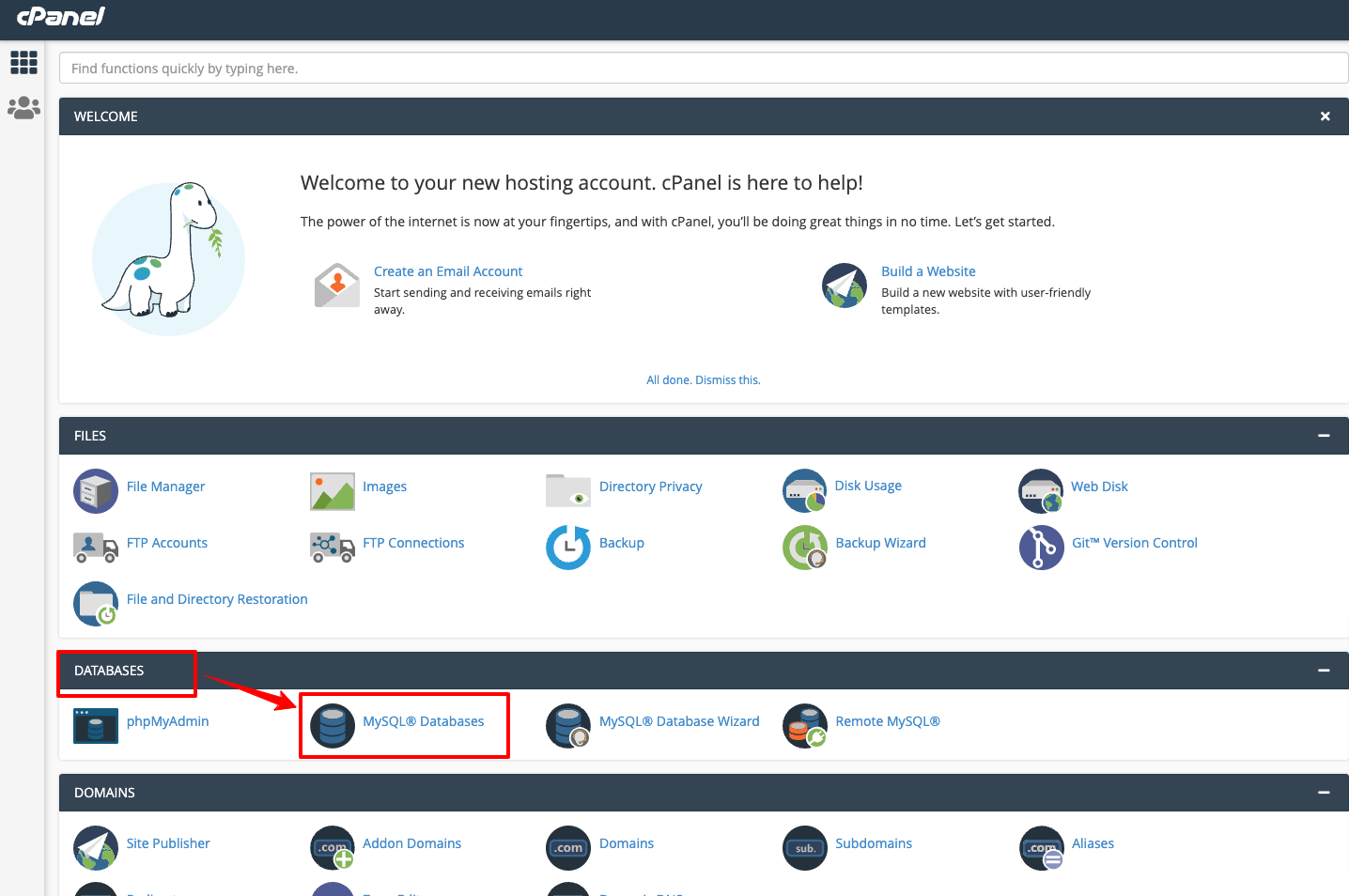
Login to your cpanel and go to > MySQL® Database Wizard
Step : 2
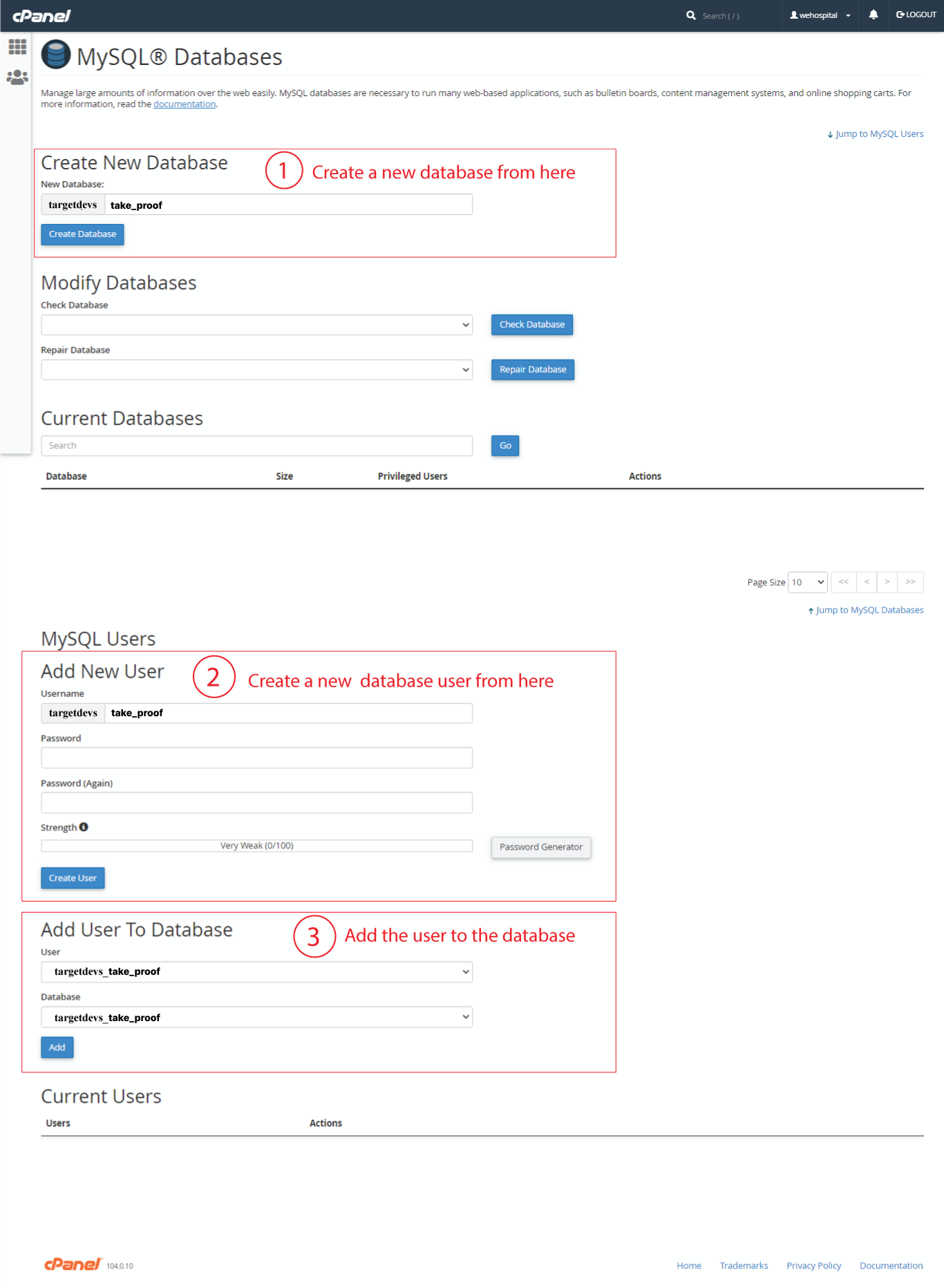
Create Database
Step : 3
Create Database Users, do not forget to keep your database user password, we will need this while we run installation wizard.Create Database Users, do not forget to keep your database user password, we will need this while we run installation wizard.
Step : 4
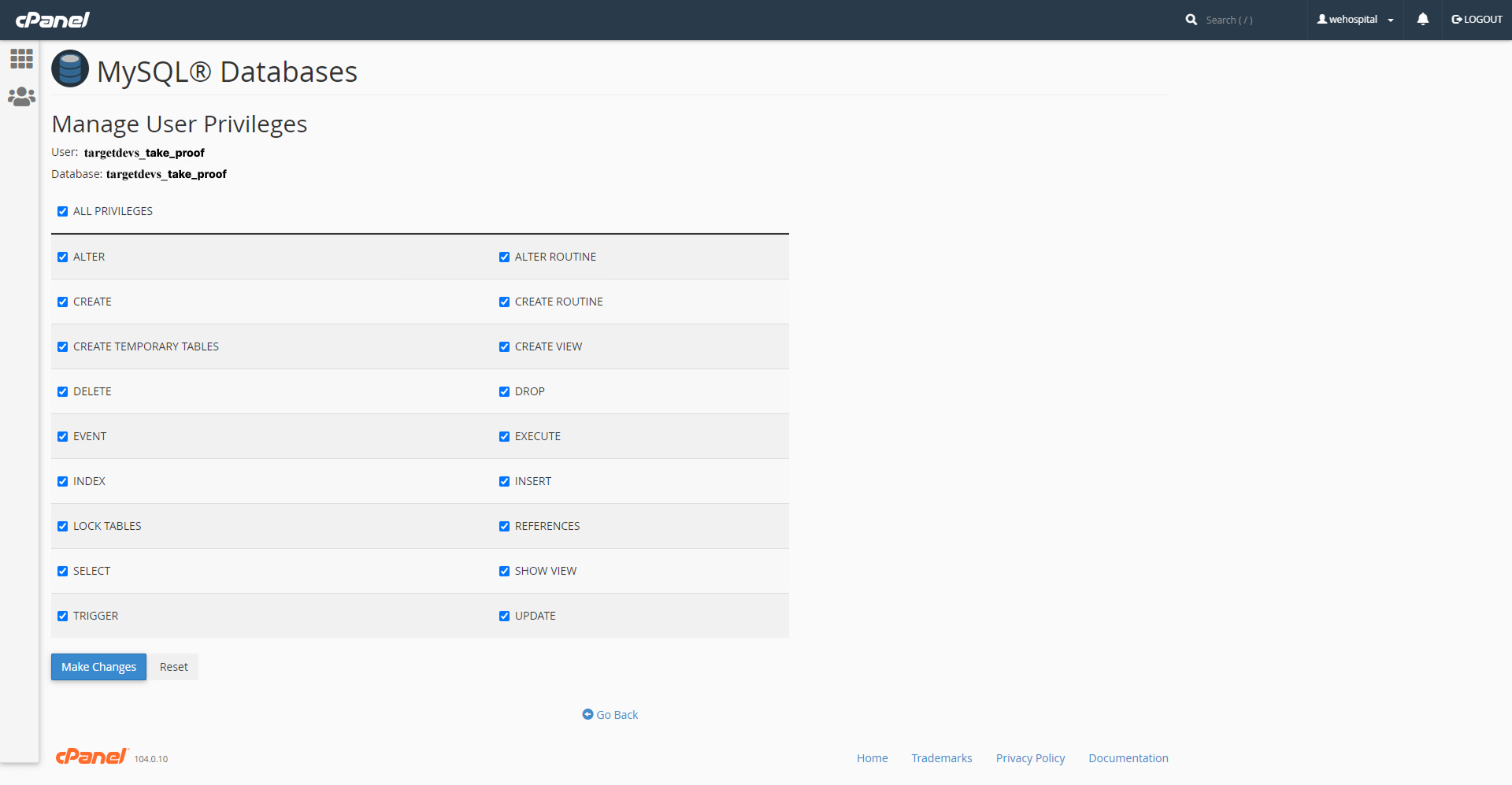
Add user to the database. check all privileges and click make changes. then click a next step Database create is done, keep database user, database name, database password in a note.
After add user to database , click on all privileges and then click on make changes button.
Then copy your database user name , database name and database password.
Step : 5
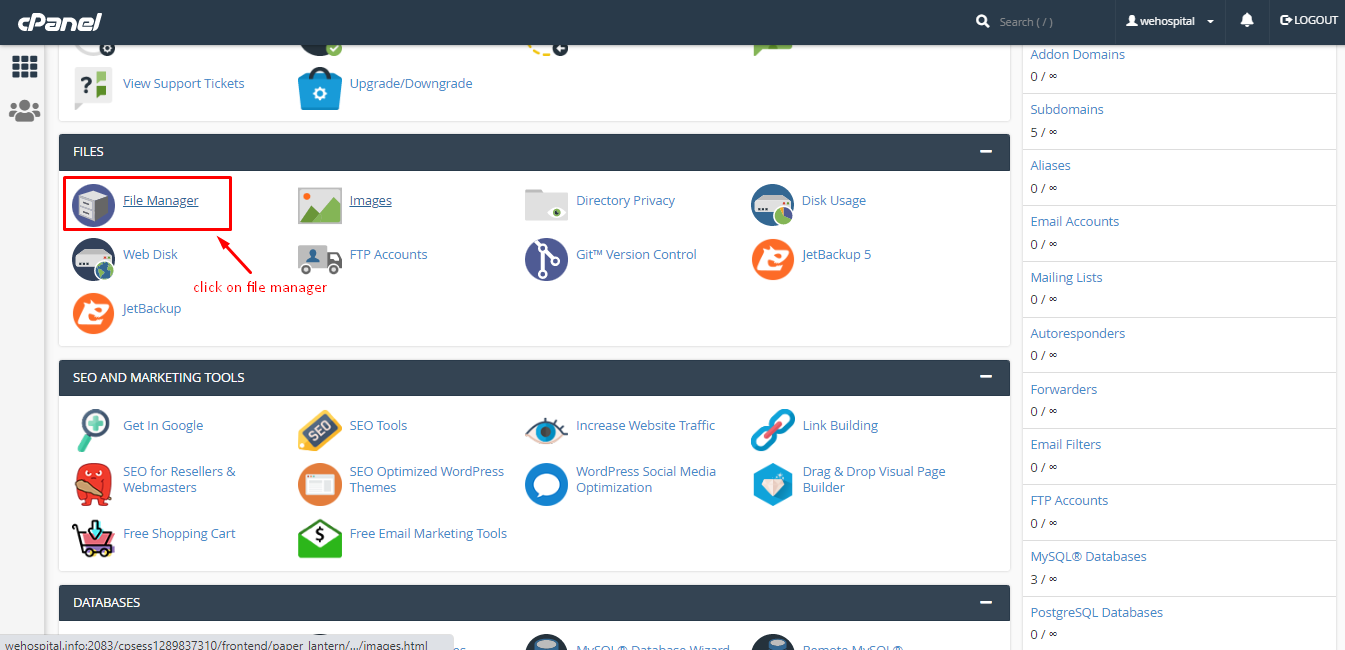
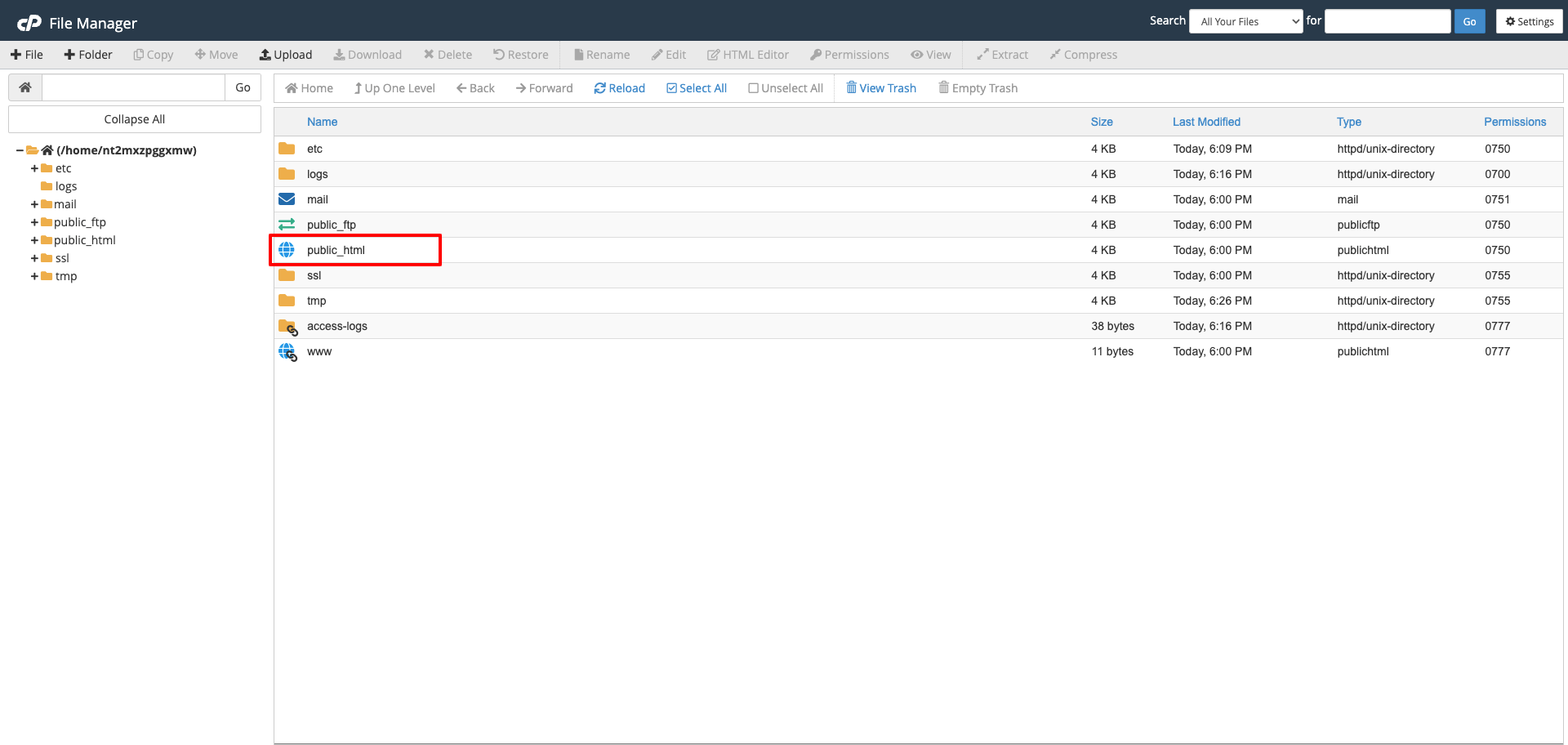
Upload File
Step 1: Download Main_Files.zip from CodeCanyon
Step 2: Extract Main_Files.zip
Step 3: Go to inside "SourceCode" folder and make zip all files & folders.
Step 4: Upload zip file to your server public_html or www or root directory.
Step : 6
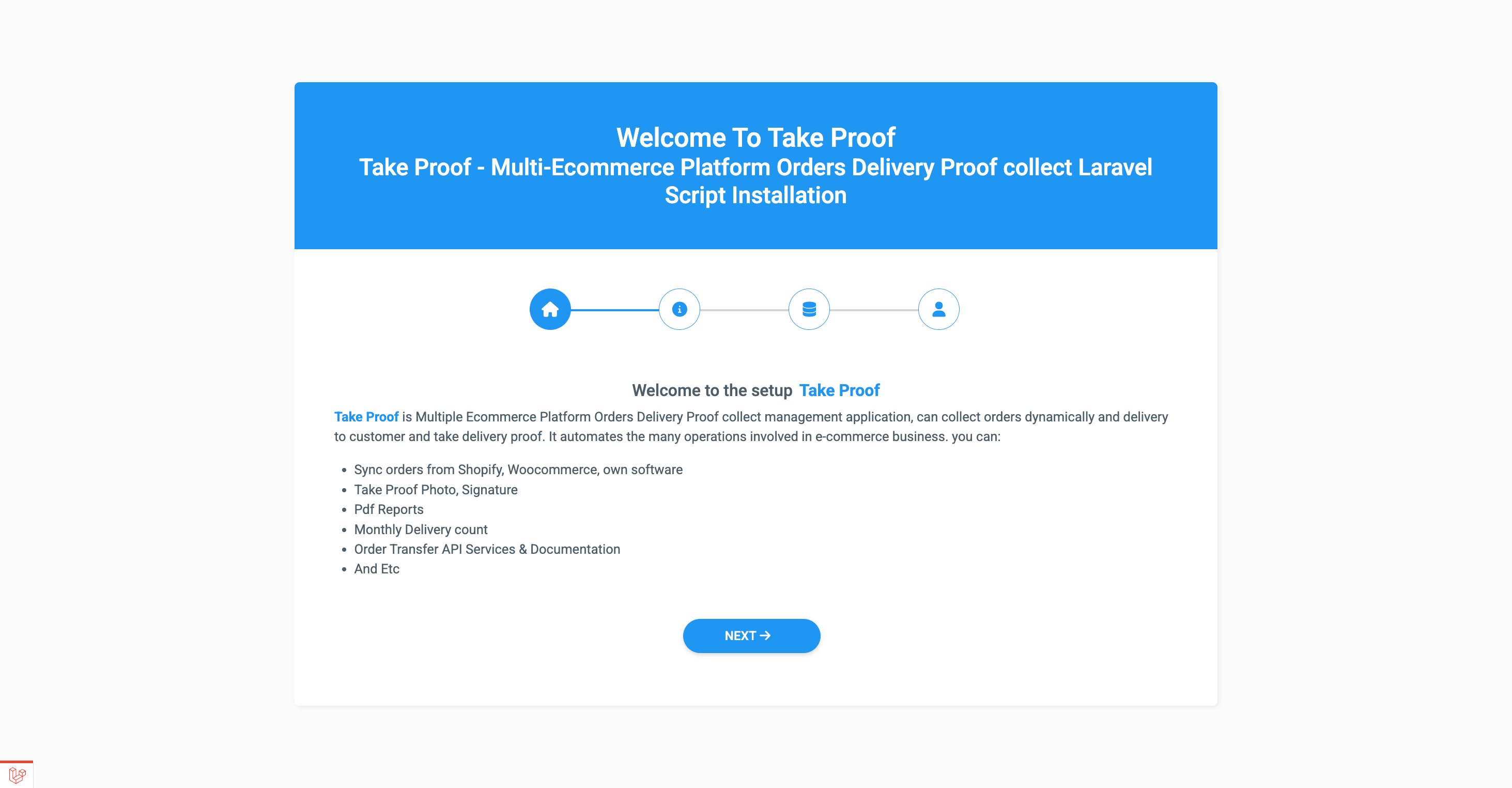
Open browser and hit you server URL. Example: https://example.com/ (opens in a new tab)
Step : 7
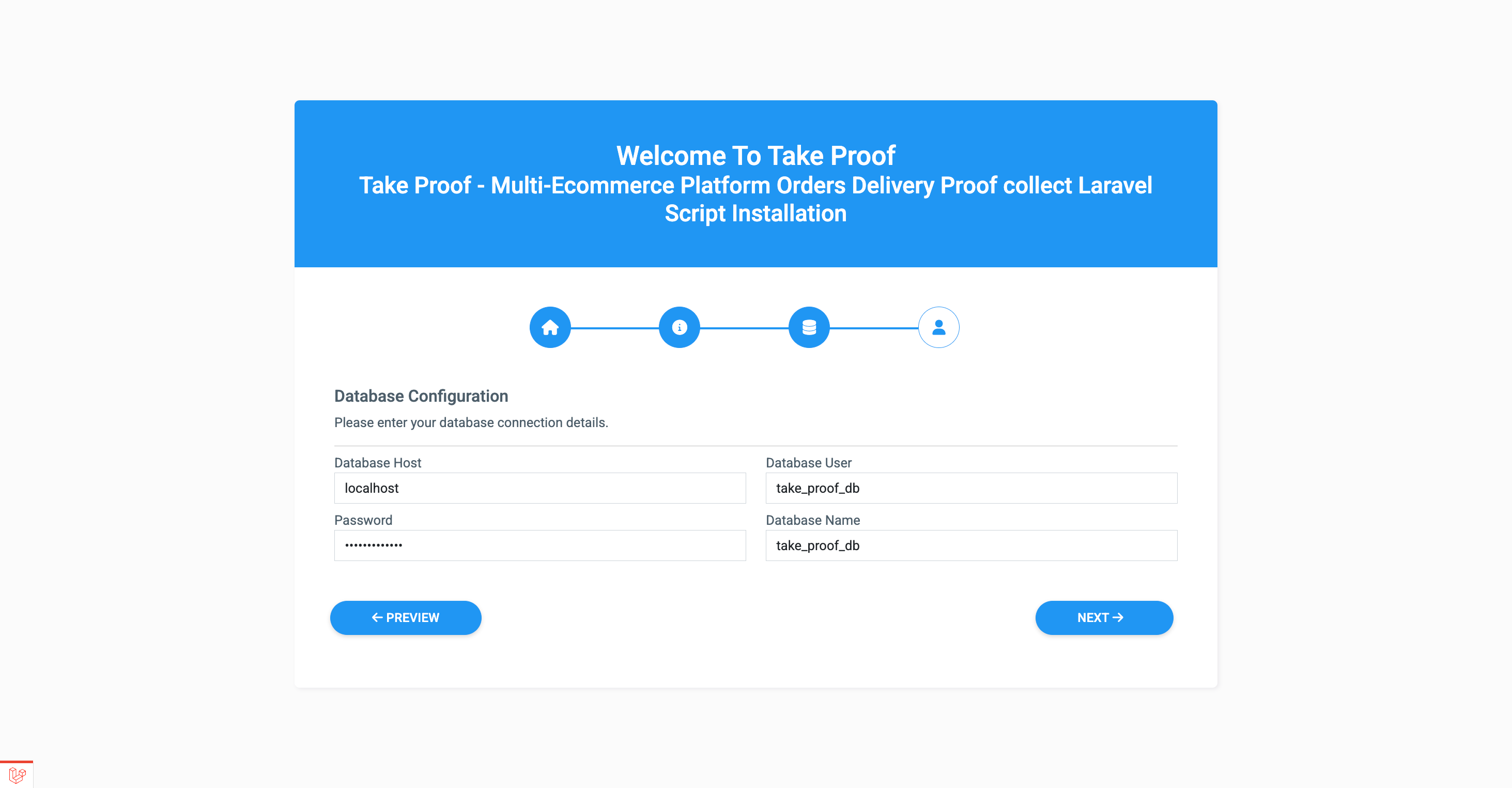
Your database connection details:
Database Host: your hosting name, e.g localhost
Database User: the username that you have created with all privileges.
Password: that user password.
Database Name: your database name for e.g take_proof_db.
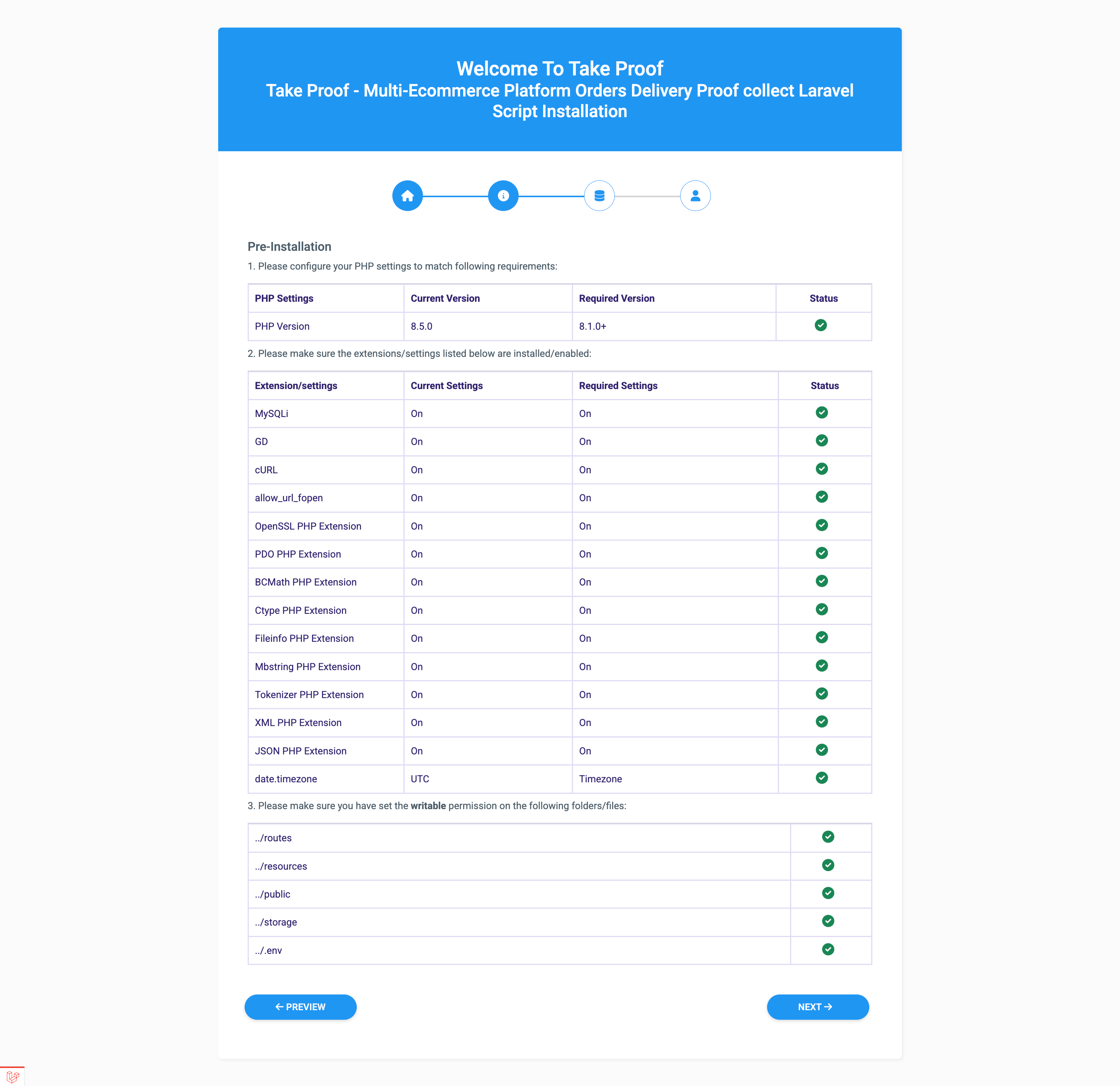
If all the requirements are fulfilled then click on Next.
Step : 8
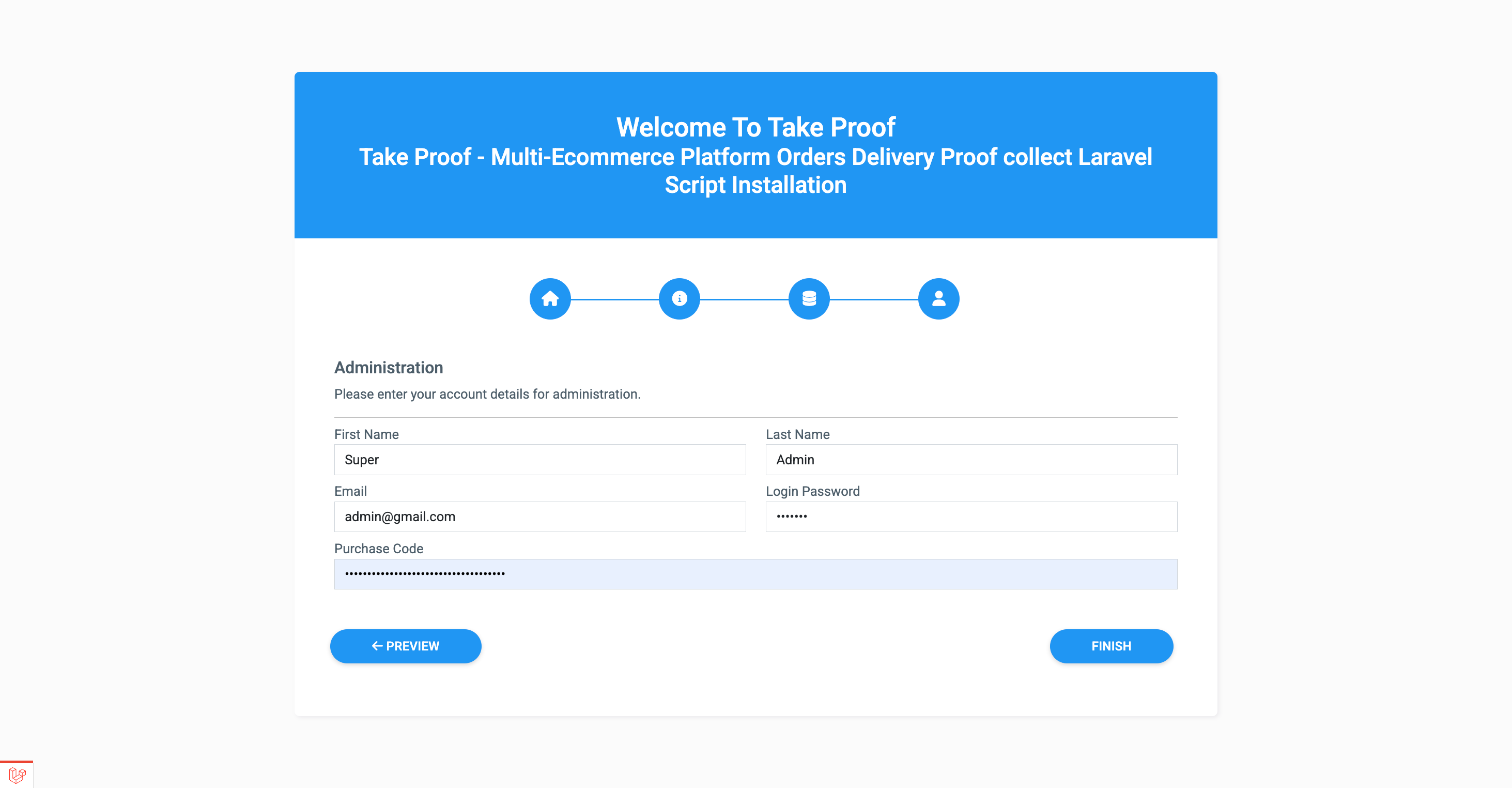
Your account details for administration:
First Name: that will be the Administrator first name
Last Name: that will be the Administrator last name
Email: email for login and you can't change this email.
Password: password for admin login.
Activation code: that you got when purchasing our product from Envato. Get Activation Code from here.
After successful installation, system will redirect you to the home page.
Info
Given Administrator credentials will be serve as the Super Admin email and password for accessing admin dashboard
Login to Admin Panel
For login to the Admin Panel go to your admin login page www.example.com/login (opens in a new tab) give your admin email and password that you have given in time of installation.